WordPress Development Without a Computer

You’re on the train, scrolling through your WordPress site on your phone, and you see an issue that you’d like to fix, for example improvement to the mobile view. Normally you’d make a (mental) note and deal with it when you’re back at your computer.

But what if you could just fix it right there?

With AI coding assistants that run in the browser—like Claude Code, OpenAI Codex, GitHub Copilot Workspace, or similar tools—combined with WordPress Playground for testing, you can now do WordPress plugin development without a computer.

What It Looks Like

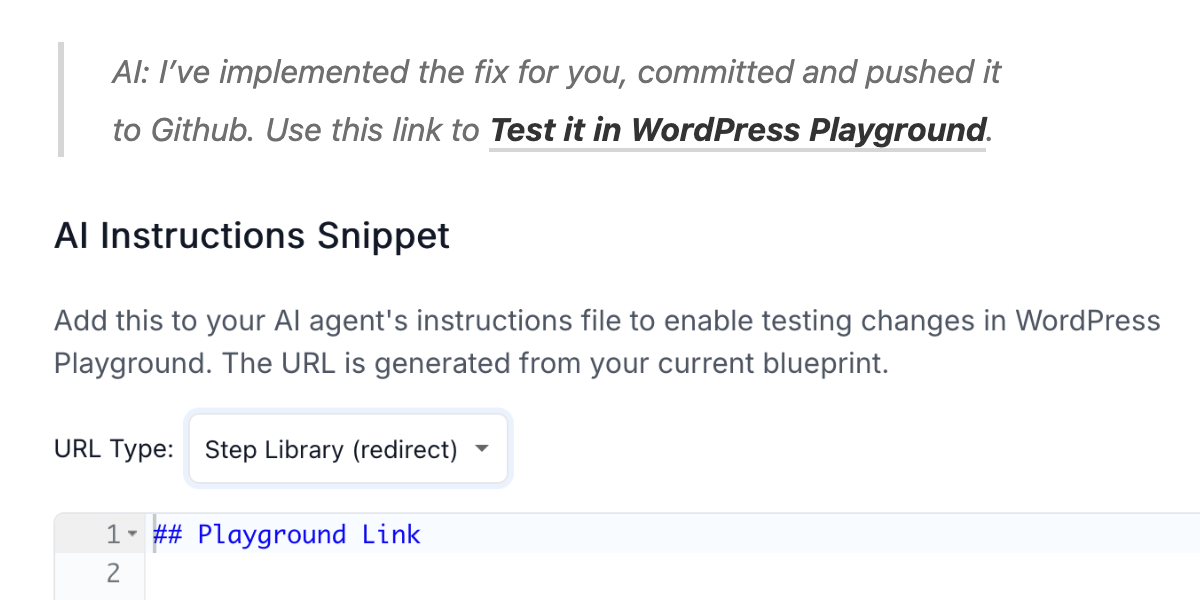
AI: I’ve implemented the fix for you, committed and pushed it to Github. Use this link to Test it in WordPress Playground.

This link above just leads to a generic Playground but to give you an idea of the workflow: The AI helps you fix or implement what you asked for and makes the code available in a branch. You’ll then run/view it via Playground. Here’s how to set this up:

What You Need

  • Your plugin or theme in a GitHub repository,
  • A web AI coding assistant,
  • A way to tell the AI how to generate Playground test links that you can click.

The third part is where the Playground Step Library comes in.

Step 1: Create Your Blueprint

WordPress Playground uses blueprints: JSON configurations that describe what to install and how to set things up. You can install plugins, themes, configure settings, import content, and more. Writing these by hand is a little cumbersome, so I built the Step Library as a visual tool to assemble blueprints step by step.

The Step Library also provides more steps than Playground offers natively: that’s where the name comes from. It compiles these custom steps into the native steps that Playground understands. The native steps are powerful but require you to know how to combine them in clever ways; the Step Library’s custom steps make it easier. Examples include addProduct for WooCommerce, addTemplatePart for block themes, a debug step to enable common debug settings and plugins, or disableWelcomeGuides.

Use this special link to the Step Library to start with an “Install Plugin” step. Paste your HTTPS GitHub repository URL. If you want to test a specific branch, add /tree/branch-name to the URL—but for now, just use your main branch. We’ll make the branch dynamic later.

Add any other steps your testing environment needs: maybe WooCommerce if your plugin integrates with it, or some test content, or specific WordPress settings.

Step 2: Generate AI Instructions

Once your blueprint is ready, open the “Copy/Share” dropdown and select “Generate AI Instructions”. This creates a markdown snippet you can add to your project’s CLAUDE.md, .github/copilot-instructions.md, or similar AI instruction file:

The generated instructions tell the AI to include a Playground testing link at the end of its responses. The branch name in your URL gets replaced with a BRANCH_NAME placeholder, so the AI knows to substitute the actual branch it’s working on.

Step 3: Add to Your Repository

Copy the generated markdown and add it to your AI instruction file. Commit it to your repository. Now any AI assistant that reads these instructions will include Playground links when it makes changes to your code.

Bonus: you can also instruct your coding assistant to add such a file to your repo!

The Workflow

Here’s what this looks like in practice:

  1. Open your AI coding assistant on your phone (or desktop),
  2. Connect to your GitHub repository,
  3. Describe what you want to change or fix,
  4. The AI makes the changes and pushes a branch,
  5. Tap the Playground link in the response,
  6. Test the changes in Playground—if it’s a private repo, you’ll authenticate with GitHub here,
  7. If it works, create a PR and merge it—you got to test before even opening the PR.

It’s a complete development loop. The AI handles the code, GitHub handles version control, and Playground handles testing. Your phone is just the interface tying it all together.

Private Repositories

Until recently, this workflow only worked with public GitHub repositories. I submitted a PR to WordPress Playground that adds GitHub OAuth authentication. Now when you load a plugin from a private repository, Playground prompts you to authenticate, and then it works just like public repos.

Beyond Mobile: Preconfigured Test Environments

The mobile workflow is a fun demo, but the same setup is useful on desktop too. The real power is in the preconfigured Playground environments through blueprints (which you can easily create with the Step Library).

Say your plugin integrates with WooCommerce. You can create a blueprint that installs WooCommerce, sets up a test product, and installs your plugin from the current branch. Now every Playground link the AI generates loads an environment where you can actually test the integration—not just whether your plugin activates without errors.

Or you want to test across different configurations: multisite vs single site, classic editor vs block editor, different PHP versions. Create a blueprint for each scenario, generate AI instructions for each, and you have a test matrix that’s one click away.

GitHub Actions

You can take this further with a GitHub Action that posts a Playground link “Try it in Playground” as a comment on every PR. That way anyone reviewing the PR can test the changes without setting up a local environment.

The Step Library is available as an npm package, so you can integrate it into your own tooling and CI pipelines.

Let AI Create Blueprints for You

Something often overlooked: the Step Library is also useful for getting AI to help you create blueprints in the first place. The native Playground steps are low-level—things like writeFile and runPHP—so AI assistants often don’t grasp what’s actually possible with blueprints. The Step Library’s high-level steps are more intuitive, and with a JSON schema that describes them, AI can easily understand what’s available and generate useful blueprints.

Other New Step Library Features

Some notable other things I added recently:

wp-env.json import: Drop your .wp-env.json into the Step Library and it converts your local dev environment config into a Playground blueprint.

GitLab, Bitbucket, and Codeberg support: Not everyone uses GitHub. The Step Library now recognizes repository URLs from these platforms.

Paste detection: Paste a plugin URL, some PHP code, or even an existing Playground URL, and the Step Library figures out what it is and creates the right steps.

Try It

The Playground Step Library is where you can create your blueprint and generate AI instructions.

I’ve found myself using this on the train, in waiting rooms, wherever I have a few minutes and an idea I want to try. It’s not how I imagined WordPress development would work, but it does.

Your WordPress as Your Personal Mastodon Instance

tl;dr: Three plugins can transform your WordPress install to your personal Mastodon Instance: ActivityPub, Enable Mastodon Apps, and Friends.

As you might know, I am the author of the Friends plugin for WordPress. I started this in 2018 with the idea (which I later described in a vision post) that something like Facebook (with private posts) could be implemented decentralized between WordPresses (and later other blogs/cmses).

To be honest, the effort is and stays somewhat niche. Social networks are good at locking people in, discovery is better, and many of my friends don’t actually run their own blog.

Joining the Fediverse

A few years later, Mastodon became big, and having been in contact with Matthias Pfefferle, I realized (after he repeatedly poked me) that it’d be great to join forces with his ActivityPub plugin (later acquired by Automattic): it allows people on Mastodon and other ActivityPub networks to follow your WordPress blog directly, not utilizing the then common “Share to Twitter” et al functionality.

So, when you have both ActivityPub and Friends installed, you can be followed and follow people on Mastodon. The Friends plugin compiles a feed of your follows (mixed in or separately also with all your RSS subscriptions).

A screenshot of the Friends plugin home screen feed.
This shows my private Friends page where statuses and posts display mixed (you can also have pure views)

This was already nice, but Matthias and I both had to implement further elements to be truly integrated into Mastodon conversations: the ActivityPub plugin implemented replies with comments, Friends implemented Boosting and Replying to any (ActivityPub) URL, and much more.

Screenshot of the ActivityPub Admin Screen
The ActivityPub admin page shows your Mastodon Handle

A (Mobile) App Ecosystem

Still, there was one piece missing. Mastodon has a thriving third-party app ecosystem. The UI of Mastodon as well of Friends (while completely customizable), is not to everyone’s taste, but you have a huge selection of apps to match your taste.

So, in the very end of 2022, I started to work on the Enable Mastodon Apps plugin. It implements the same API that Mastodon implements for talking to its clients, just in WordPress.

A screenshot of Mastodon apps
Today the official directory lists 56 apps, likely many more exist

It was quite a wild ride (that likely is not over yet), reverse engineering some clients because they would crash even if the plugin spoke exactly what the docs defined. The reason being that most apps (understandably) assume some further truths that are valid for Mastodon’s implementation, like ids, while being defined to be of string value, actually need to be numbers. Eugen Rochko actually later confirmed to me that this specific choice was merely made to avoid troubles with very large ids.

Last week, I released 0.9.0 of Enable Mastodon Apps which is almost a rewrite, fueled by contributors at the CloudFest Hackathon: special thanks to Matthias Pfefferle for hosting it, Matthias Kittsteiner, Konstantin Obenland, and Ralf Wiechers for your contributions! This resulted in a more stable implementation (ensuring correct JSONs) and a stricter separation of concerns.

Combining the Power of Three Plugins

So the combination of the three plugins now gives you the ability to fully interact with the Fediverse while not having to host your own Mastodon which comes with quite a list of requirements.

Granted, there are still rough edges (please help discover and fixing them by reporting in the respective Github issues) and we yet only have experience with a couple hundred followers and follows. But that works already reliably.

Each of the plugins are useful on their own:

  • If you have just the ActivityPub plugin, people can follow your blog on the fediverse, can comment from the fediverse on your posts and your replies will go back into the fediverse.
  • If you have just the Enable Mastodon Apps plugin, you can use Mastodon Apps to see the posts on your blog (useful if it’s a multi-people blog), reply and submit new posts.
  • If you have just the Friends plugin, you can connect WordPresses, follow RSS feeds, get keyword notifications, apply feed rules, react on posts with emoji (there is a bit of an ecosystem of its own, with further plugins Post Collection and Send to E-Reader).

Together, by making use of WordPress hooks (see for example the Enable Mastodon Apps Hooks Documentation), the plugin extend each other’s API responses or UI. What travels over the the ActivityPub protocol is handled by the ActivityPub plugin. When a feed of posts is involved, the Friends plugin will fill in your friends’ posts. And so on.

Alternative UIs

It’s really quite something to be able to browse your own blog, or statuses and blogs you follow with apps like Phanpy (web), Elk (web), Mammoth (macOS, iPad, iOS), or Tusky (Android) or Ivory (macOS and iOS).

The posting experience from mobile using a Mastodon App can be better than with the standard WordPress mobile apps. Each app covers a different use case and has posting UI specialized in that.

Empower Your WordPress!

I believe that the Fediverse comes to the rescue of blogging. Unfortunately, years ago the comment sections of the web were killed by spam. The fediverse now reopens meaningful interaction with your blog posts. Comments from the Fediverse appear in your blog and your responses are sent back as replies. That gets conversations going again!

To try it out, you can use WordPress “run WordPress in your browser” Playground to take a little glimpse at the plugins without having to install it: Note that, because of its JS nature, playground is in a sandbox and can only connect to CORS enabled URLs.

Finally, these are the links to the WordPress plugin directory:

  • ActivityPub: have conversations about your blog posts across the fediverse.
  • Enable Mastodon Apps: make WordPress compatible with Mastodon apps.
  • Friends: follow others via RSS or ActivityPub.

Thanks for reading, I am curious for your opinions! You can reply to this post on the fediverse!