Although I won’t be attending the WordPress conference WordCamp Europe 2026 in Krakow this year because of other commitments, I built something that could be useful for attendees of it, as well as for future WordCamps.
WordCamp Companion is a tool to plan your WordCamp and guide you through it, as well as for taking notes during sessions.
It is built as a WordPress plugin which you can install to your own WordPress (not in the plugin directory yet so you need to download the ZIP) or use through my.wordpress.net that I talked about in my previous posts.
Use this link to start it directly in my.wordpress.net. Since it is a WordPress hosted in your browser, it is free and private.
The plugin features:
- A live updating timeline with easy adding of sessions,
- Note taking for each session with export,
- Sharing sessions to others,
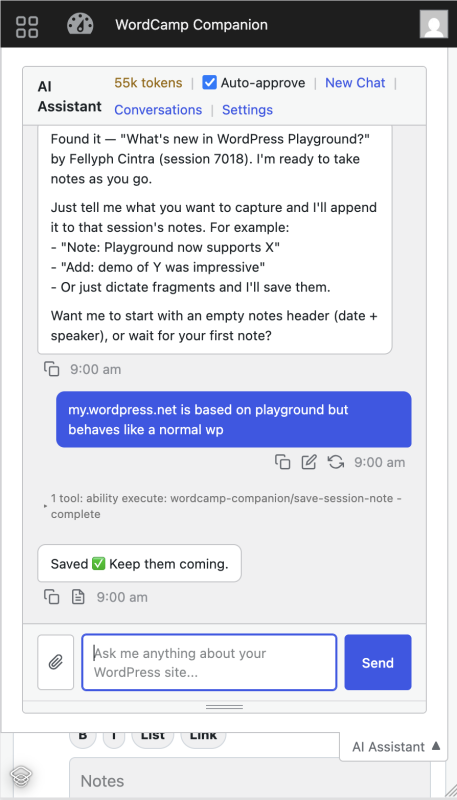
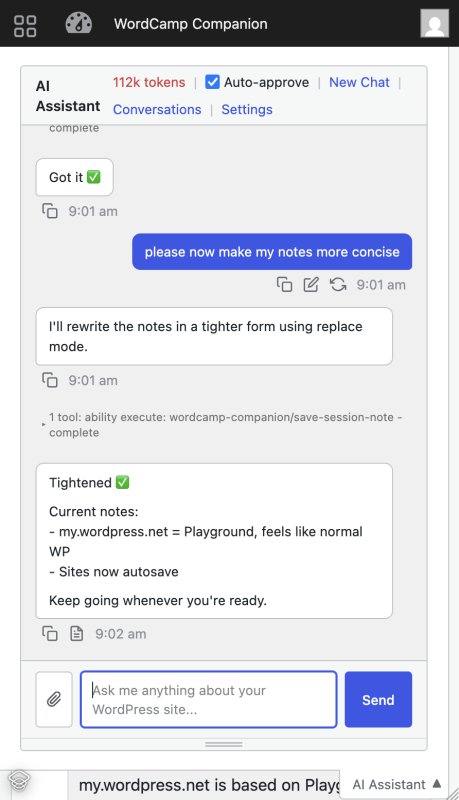
- AI Assistant compatibility.
Scroll down to find screenshots and screen recordings of those features.
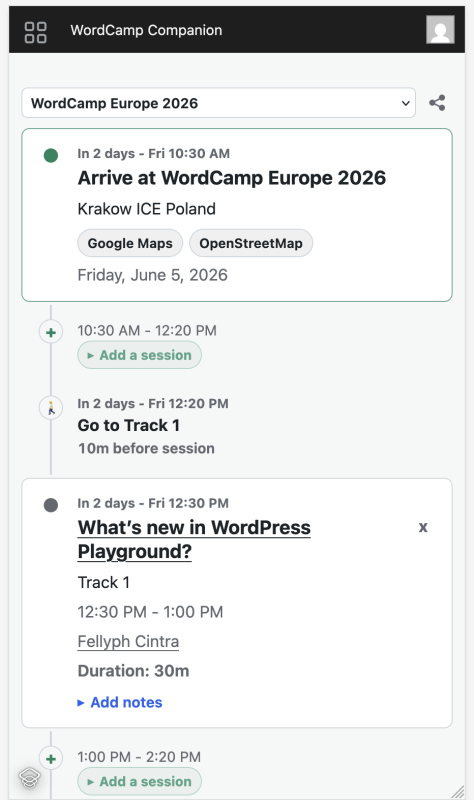
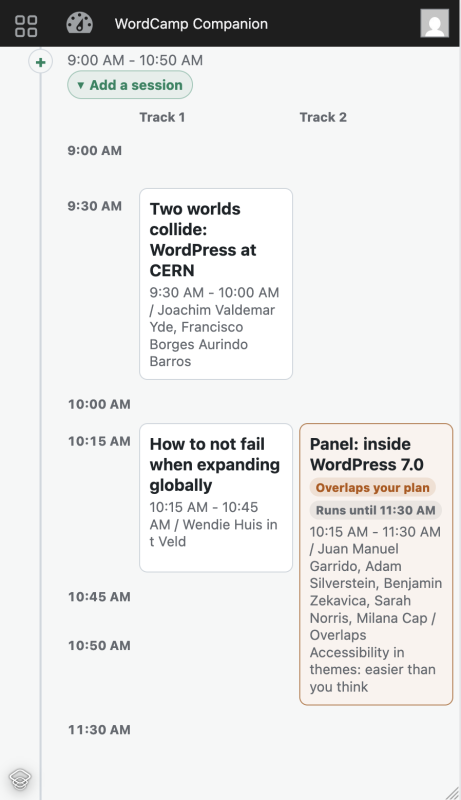
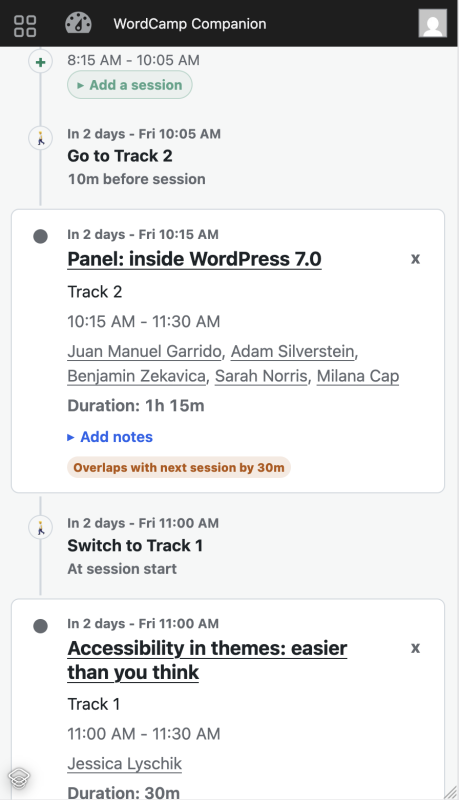
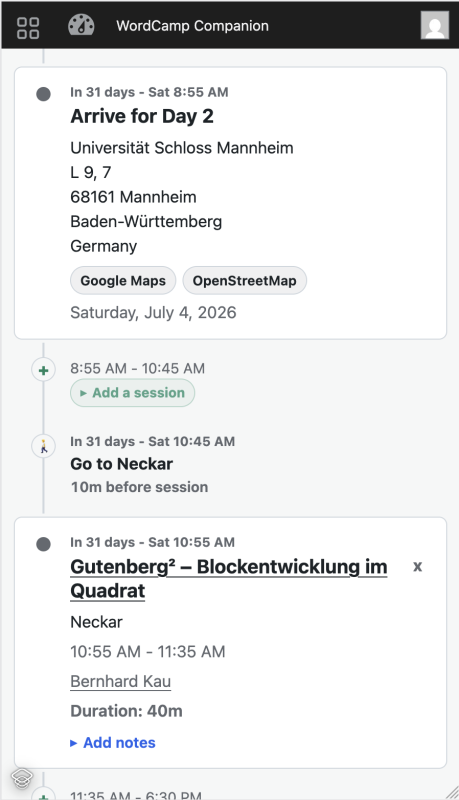
Let’s start with timeline view. It will automatically update according to the current time and show you when to switch tracks.
Adding Sessions
In the timeline you can see an “Add a session” in the gaps of your schedule.
Note Taking
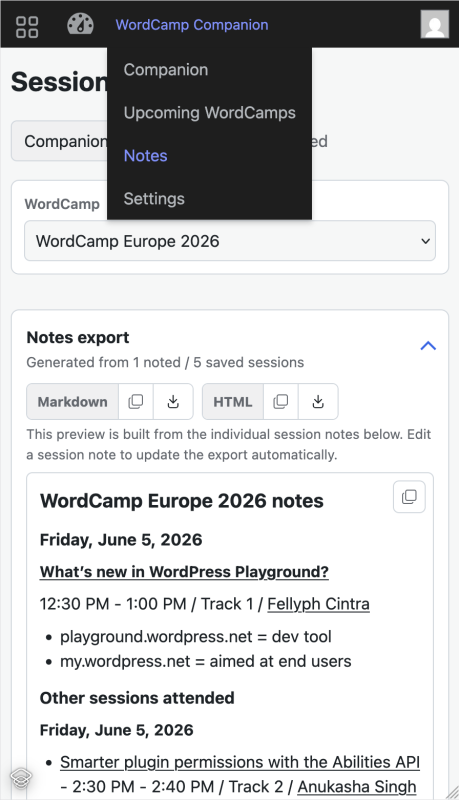
You can take notes inline in Markdown-style which you can then export.
Session Sharing
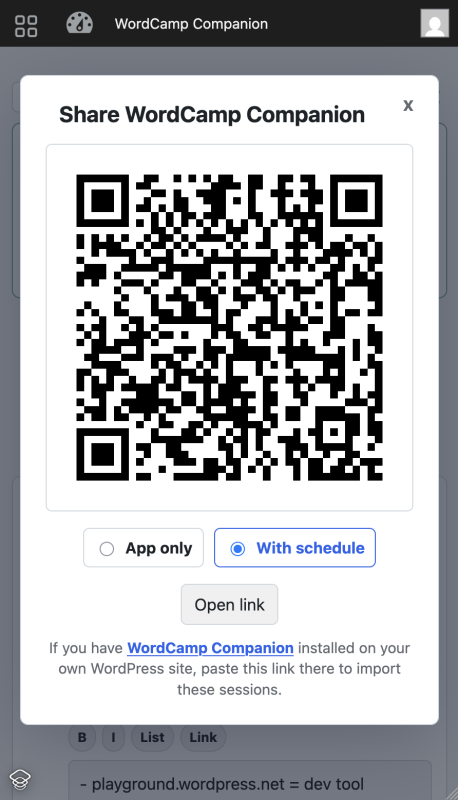
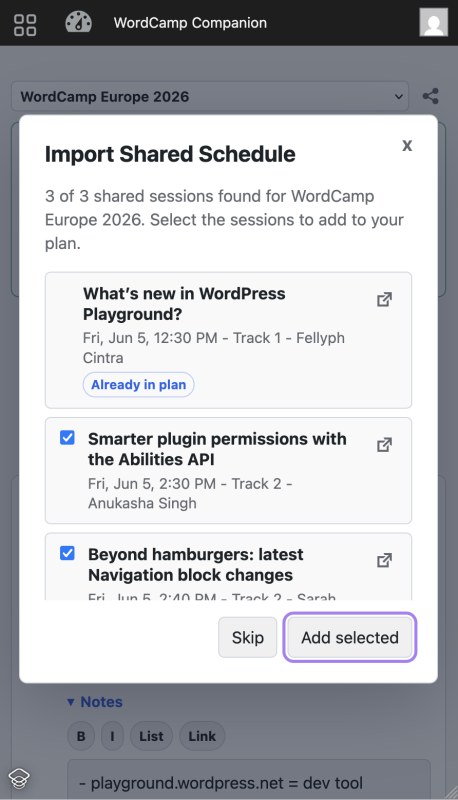
If you are interested, here are some technical details about how this works.
Since the sharing link points to my.wordpress.net, a lot needs to happen for this to work:
- You click the WordCamp Companion share link pointing to a URL like
https://my.wordpress.net/?myapps-i=wordcamp-companion&wcc1=…which: - Loads my.wordpress.net which downloads WordPress, PHP wasm, etc, everything that is needed for the Playground runtime.
- Installs the My Apps plugin which is a central point in the easy experience of it,
- Navigates to URL above so that WordPress receives it,
- My Apps installs the Wordcamp Companion and redirects to it (minus its own parameter),
- Then the WordCamp Companion plugin reads the URL parameter
wcc1to import the schedule.
This is all quite complex just to make it work inside my.wordpress.net. But this offers an experience where you don’t install it on your WordPress just to try it. If you like it, I recommend doing so because then all you need to know is your own URL.
And if you did install it on your own WordPress, you can import it also by just pasting the share link into your companion.
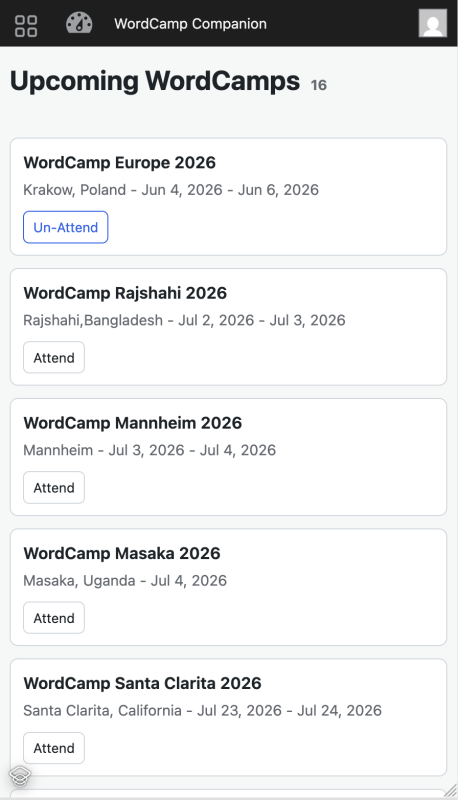
All WordCamps
While it is good timing for WordCamp Europe, it also works for multiple (future) WordCamps:
AI Assistant Compatible
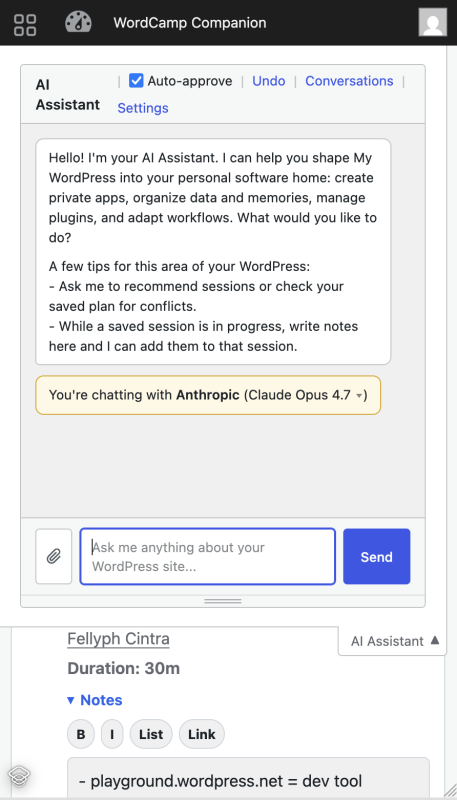
I’ve been working on a capable AI Assistant for WordPress that you can try inside my.wordpress.net. It can help you work out a schedule:
If you’re attending this WordCamp Europe, or other future WordCamps, give the WordCamp Companion a try. You can do it easily and risk-free with this link to start it directly in my.wordpress.net.
Fediverse reactions


Post URL
Your Profile
Why do I need to enter my profile?
This site is part of the ⁂ open social web, a network of interconnected social platforms (like Mastodon, Pixelfed, Friendica, and others). Unlike centralized social media, your account lives on a platform of your choice, and you can interact with people across different platforms.
By entering your profile, we can send you to your account where you can complete this action.


Leave a Reply