Using WP Apps, you can turn your WordPress into your personal knowledge base: each app can help you organize a different aspect of your life with your data stored in structured ways, under your control, and available to the tools you choose.
To explain my vision for establishing WP Apps, I have created a landing page and showcase at wpapps.kirk.at. If you think it’s a good idea, please spread the word!
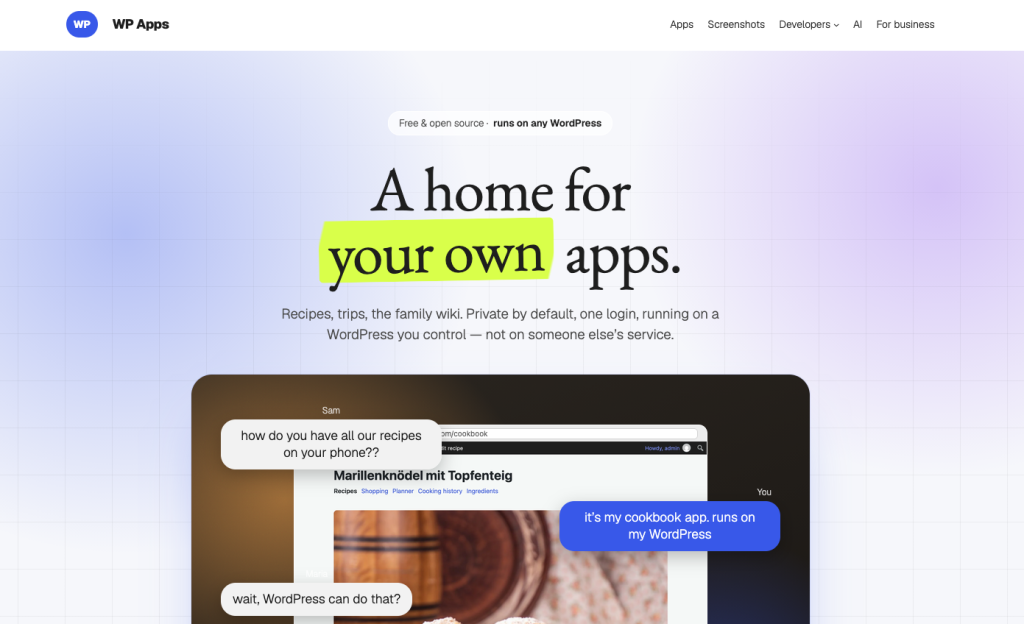
There is a knowledge base section on the “AI” page, and I would like to explain it using my own setup.
I use WP Apps extensively, I have several aspects of my life stored in different WP Apps, for example, Cook App, Memex, and Travel App. These apps store the data in structured ways: recipes with ingredient taxonomies, trips with trip items, and so on.
Using AI to Clean Up
For example, I imported some recipes to my Cookbook from the web that I used to look up again and again. I also had to remember the small adaptations I had made.
This created a problem: different recipes had ingredients stored in all sorts of ways. Although the app tries to consolidate them, I still ended up with different types of flour, notes that had made it into ingredient names, and cuisines in both English and German. It was a bit of a mess.
So I used the AI Assistant and told it: “Help me clean up my cookbook. There is a bit of chaos in the ingredients and cuisines.” And, of course, it did: first by suggesting what it would do and then by doing the actual clean-up.
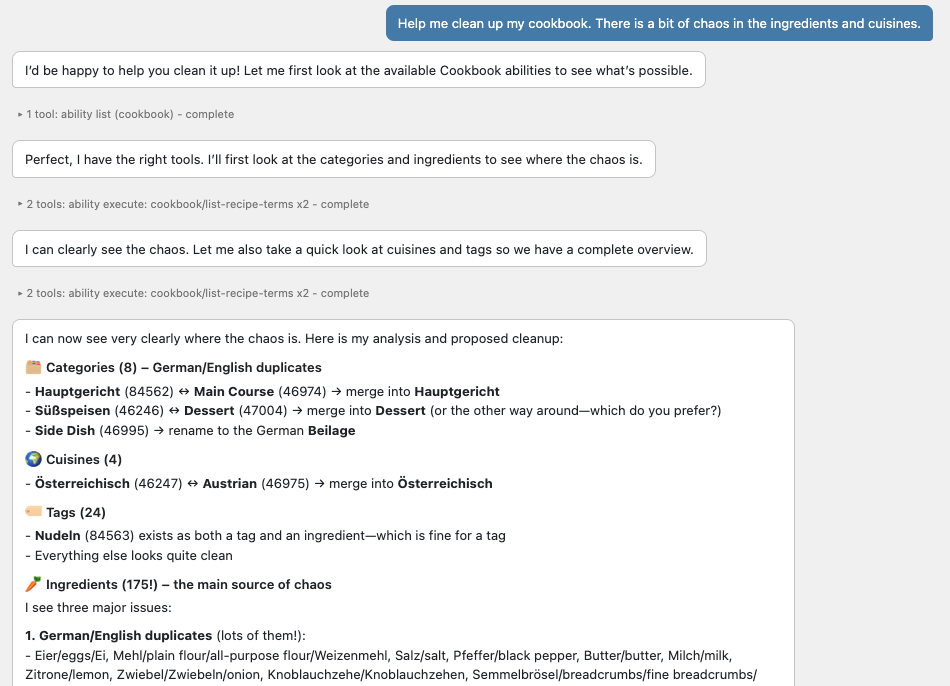
This was very satisfying, and I wonder how many other cookbook apps allow this when you don’t have the same freedom over your data.
In this case, I used an API key for the conversation, and it cost about €3. For me, it was worth it!
But can you use a Claude or ChatGPT subscription that you might already have for the same thing? Turns out, yes!
How AI Can Interact with WP Apps
A quick detour before we get there: WordPress 6.9 added the Abilities API, which gives plugins a standard way to expose their functionality. All the WP Apps I created expose such abilities. This means that AI can interact with them. For example, in the screenshot above, you can see how it talked to the plugins using abilities.
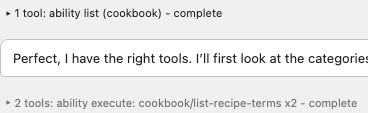
The apps store the structured data, the Abilities API makes their functionality available, and you can let AI access this externally via MCP, or potentially WebMCP (see WebMCP or MCP).
Using AI Subscriptions with Your Knowledge Base
MCP is what lets subscription-based AI assistants interact with your site.
WordPress doesn’t yet have native MCP support. There is an MCP Adapter plugin that exposes the Abilities API, but it is only available on GitHub, and it is missing something crucial for use with subscription-based AI assistants: OAuth. Since you don’t want to make your data public (or publicly writable), you need a way to authorize the AI to access it on your behalf.
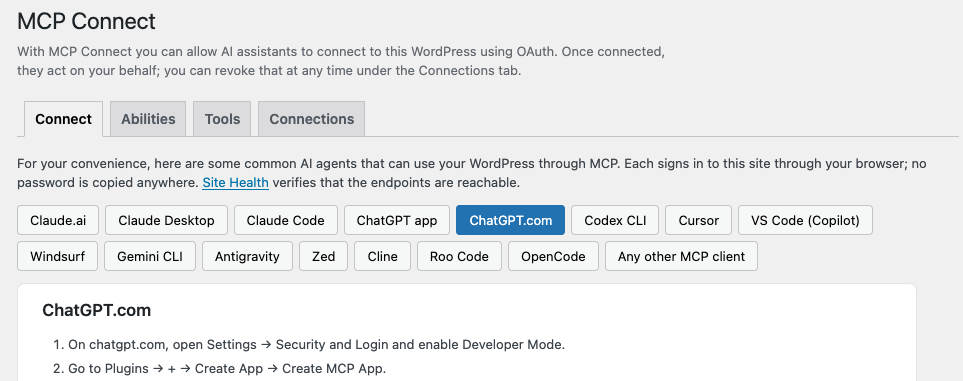
So I wrote the MCP Connect plugin, which adds this OAuth layer. I am not (yet?) planning to publish it in the WordPress.org Plugin Directory because I think we eventually need an official solution. For now, I use it myself and you could too, if you’re daring.
Similarly, WordPress does not yet officially support WebMCP. I have a WebMCP Abilities plugin that exposes Abilities over WebMCP. If you have the ChatGPT app and ask it to open your website, you can log in there and use all the available abilities.
Example: Using ChatGPT to Talk to Your WordPress
There is a chance that MCP is old news to you since it has been around for quite a while. But it makes particular sense in combination with WP Apps and the abilities they expose.
Say I’m going to London next weekend. I can do this using the Travel App:
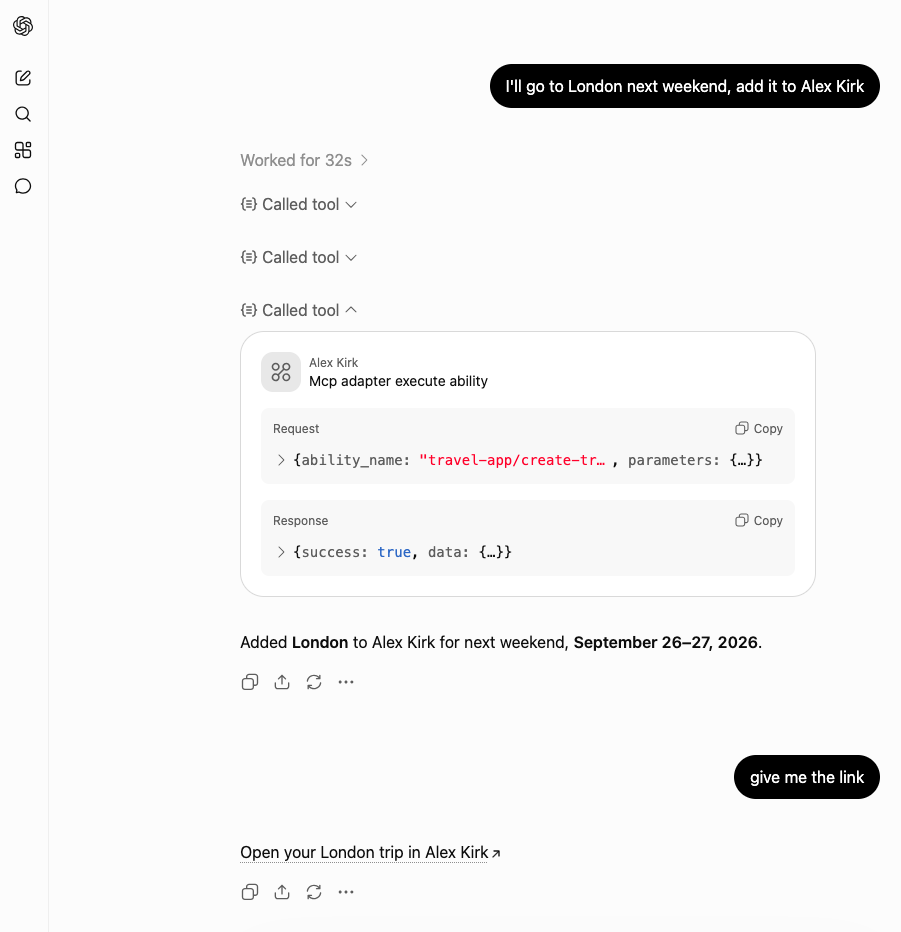
And arrive at this:
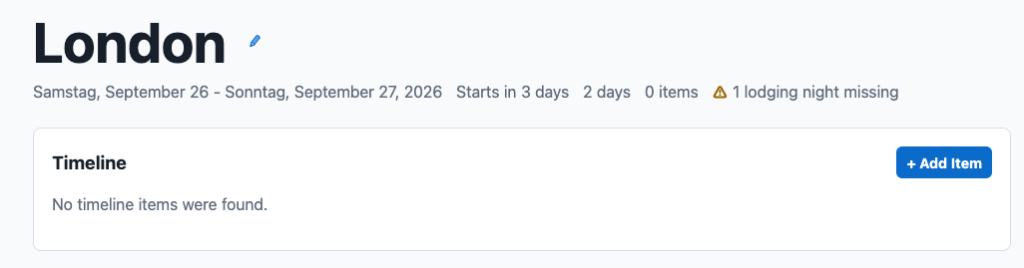
Next, I could continue the conversation and paste my flight and hotel reservations, and it would add them.
I didn’t want to share a real example, but I use this to organize my trips. This replaced TripIt for me.

Maybe TripIt also supports MCP these days. But this setup can use all the apps I have installed, if I want it to.
Does This Require AI?
It is important for me to mention that I am showing what is possible with AI, not arguing that AI is required. While I used Anthropic or OpenAI above, all of this can also be done with local LLMs. Or I can choose not to use AI at all.
Because the data is in my WordPress, I can switch AI providers as I like. If I cancel one subscription and start another, the new service can still access and work with my data.
My data is also not spread across many external services where I don’t know what they will do with it. I can choose whether to use AI, and I can use it only for selected tasks. If I stop using AI, my data remains in my WordPress.
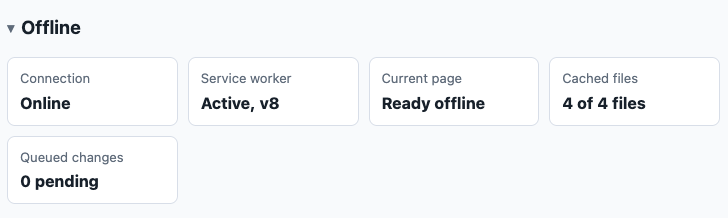
Oh, and because I have been asked about this: Travel App is available offline. On each trip you can verify its offline availability at the bottom:
How to Try It?
Without Installing Anything
Each WP App page has an install link for my.wordpress.net, a free WordPress that runs in your browser. To get started:
- Choose the WP App you want to try.
- Open its my.wordpress.net demo. You can install multiple WP Apps in the same browser-based WordPress and use them together.
- Add your own data and experiment with the apps. This WordPress and its data stay private to your computer, so you can use it with real data.
Each WP App page also has a ZIP download (except for those that are already in the WordPress.org plugin directory, like Travel App), to install it on a WordPress you already own.
Use WP Apps with AI from Inside WordPress
The first option is to use AI from inside WordPress through the AI Assistant app. The assistant can work with all the abilities exposed by your installed WP Apps.
- Install the WP App or apps you want to use.
- Install AI Assistant.
- Connect it to a hosted AI using an API key, or configure it to use a local LLM (e.g. LM Studio or Ollama).
- Open AI Assistant and start with a small request, such as listing your recipes or creating a test trip.
Use WP Apps with an AI Subscription from Outside WordPress
The second option is to let an AI assistant that you already use connect to your WordPress. There are two ways to do this, depending on whether you want the AI to access your site directly or work with it while you have it open in a browser.
Connect Directly Through MCP
With MCP, AIs like ChatGPT, Claude, or another MCP client can access it directly, they don’t have to be open in the browser. The connection remains available across conversations.
- Make sure your site runs WordPress 6.9 or newer, then install the WP App or apps you want to use.
- Install and activate MCP Connect. It includes the MCP Adapter, so you don’t need to install that separately.
- Go to Tools → MCP Connect. Review the available abilities and hide any that you don’t want AI clients to see.
- Follow the ready-made instructions on that screen to add your site to ChatGPT, Claude, or another supported client. Then sign in to your WordPress and authorize the connection.
- Now you can ask your AI to do things related to your WP Apps, it will automatically determine the right abilities to use.
Work Together in the Browser Through WebMCP
Some AI tools, such as the ChatGPT app, use WebMCP to interact with the site that is open in the in-app browser. To use them:
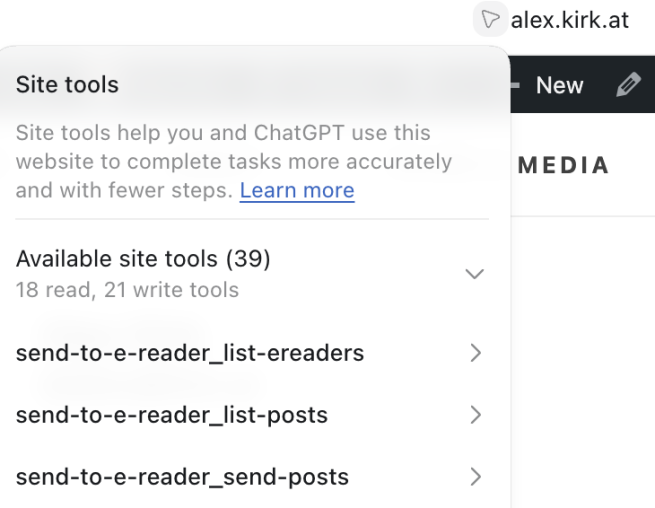
- Install the WP App or apps you want to use, then install WebMCP Abilities.
- Open your site in the built-in browser of the ChatGPT desktop app and log in to WordPress. You can inspect the tools that ChatGPT can see with the little arrow icon.
- Ask ChatGPT to do things related to your WP Apps, it will automatically determine the right abilities to use.
At the moment, this primarily means using site tools in the ChatGPT desktop app. I am not aware of WebMCP support in the Claude app yet. In the future, WebMCP could also work with AI agents built into browsers or provided through browser extensions. Chrome already has experimental WebMCP support.
Access Control?
Both MCP Connect and WebMCP Abilities let to limit the abilities exposed. Destructive abilities (like deleting) typically need confirmation from the user.
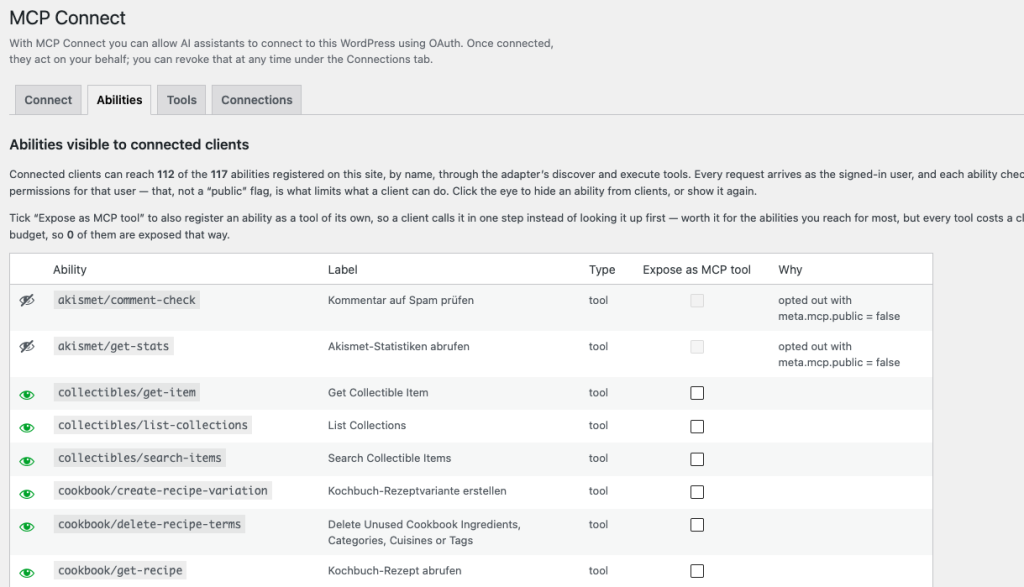
Apart from AI, WP Apps are restricted to logged-in users by default, so you can use them alongside whatever you already use your WordPress for. They give your data a durable home and leave you in control of which tools, AI or otherwise, can work with it.
Conclusion
For me, it is a compelling combination to use WP Apps as an opinionated complement to subscription AI like ChatGPT or Claude.ai.
You can have AI fill in data, organize it, and then use a nice WP App to browse it and interact with the data. But you remain in control and can decide when to involve AI.
You can use the apps standalone and import from elsewhere and fine-tune the contents yourself, because it they are all apps that run on your WordPress.
Fediverse reactions



Post URL
Your Profile
Why do I need to enter my profile?
This site is part of the ⁂ open social web, a network of interconnected social platforms (like Mastodon, Pixelfed, Friendica, and others). Unlike centralized social media, your account lives on a platform of your choice, and you can interact with people across different platforms.
By entering your profile, we can send you to your account where you can complete this action.



Leave a Reply